MS Forms (Microsoft Forms): Complete Guide for Surveys and Online Forms
MS Forms, commonly known as Microsoft Forms, is an online form and survey creation tool developed by Microsoft. It allows users to create surveys, quizzes, polls, and questionnaires quickly and collect responses in real time. MS Forms is widely used in businesses, educational institutions, and organizations that rely on Microsoft 365 tools.
This guide explains what MS Forms is, how it works, its key features, common use cases, limitations, and best practices to help you decide if it fits your needs.
What Is MS Forms?
Microsoft Forms is a cloud-based form builder included in Microsoft 365. It enables users to design forms using a simple interface and share them via links, QR codes, or email. Responses are automatically collected and summarized with charts and can be exported for further analysis.
MS Forms is often used for:
Surveys and feedback collection
Quizzes and assessments
Polls and voting
Registration and internal request forms
Because it is browser-based, users can create and respond to forms from desktops, tablets, or mobile devices.
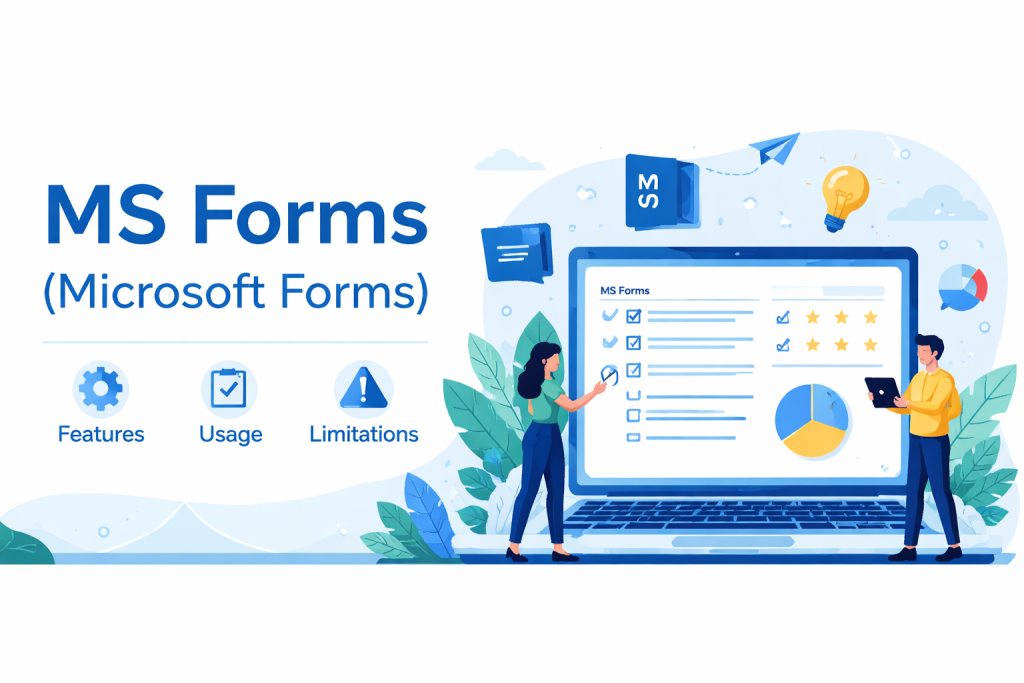
Key Features of MS Forms
1. Easy Form Creation
MS Forms uses a drag-and-drop interface that allows users to create forms quickly without technical skills. Questions can be added, removed, or rearranged easily.
2. Multiple Question Types
Users can choose from several question formats, including:
Multiple choice
Text (short or long answers)
Rating scales
Date selection
Ranking options
This flexibility supports both simple surveys and structured questionnaires.
3. Real-Time Response Tracking
Responses are collected instantly, and results are displayed through visual summaries such as charts and graphs. This makes it easy to monitor participation and trends as data comes in.
4. Integration with Microsoft 365
MS Forms integrates seamlessly with Microsoft tools such as:
Excel for exporting and analyzing responses
Microsoft Teams for sharing forms and collecting feedback
OneDrive for data storage
These integrations are especially useful for teams already using Microsoft 365.
5. Sharing and Access Control
Forms can be shared publicly or restricted to specific users. Options allow responses from:
Anyone with the link
Only users within an organization
This helps control who can submit responses.
Common Use Cases for MS Forms
Employee Feedback and Internal Surveys
Organizations often use MS Forms to collect employee feedback, conduct pulse surveys, or gather opinions during internal initiatives.
Education and Training
Teachers and trainers use MS Forms for quizzes, assessments, and knowledge checks. Automatic grading for quizzes saves time and provides quick insights into learner performance.
Event Registrations
Simple event registration forms can be created to collect attendee details such as names, email addresses, and preferences.
Customer and User Feedback
MS Forms is also used to gather customer satisfaction data, product feedback, and service evaluations.
Advantages of Using MS Forms
Simple and user-friendly interface
Quick setup with no coding required
Included with Microsoft 365, reducing the need for separate tools
Automatic response summaries with basic analytics
Easy data export for reporting
These advantages make MS Forms a practical option for basic form and survey needs.
Limitations of MS Forms
While MS Forms works well for simple use cases, users may encounter limitations as requirements grow.
Limited Customization
Design and branding options are minimal. Layout control, styling flexibility, and advanced visual customization are limited compared to specialized form platforms.
Basic Workflow Capabilities
MS Forms focuses on data collection rather than complex workflows. Advanced approval flows, conditional routing, or multi-step experiences may require additional tools.
Restricted Advanced Logic
Conditional logic exists but is relatively simple. Complex logic paths or deeply personalized form journeys can be difficult to implement.
Reporting Depth
Built-in analytics are suitable for quick insights, but advanced reporting often requires exporting data to Excel or other analysis tools.
MS Forms vs Other Online Form Builders
When comparing MS Forms with other online form builders, the key differences usually appear in:
Design flexibility
Advanced logic and workflows
Custom branding
Integration depth beyond Microsoft tools
MS Forms is best suited for users who prioritize simplicity and Microsoft ecosystem compatibility over advanced customization.
Best Practices for Using MS Forms
1. Keep Forms Short and Focused
Shorter forms generally receive higher completion rates. Include only essential questions to reduce drop-offs.
2. Use Clear and Simple Language
Avoid technical terms or long instructions. Clear wording improves response accuracy.
3. Test Before Sharing
Always preview and test forms on different devices to ensure questions display correctly and logic works as expected.
4. Set Response Limits
For surveys or events, configure start and end dates or response limits to avoid unwanted submissions.
5. Analyze and Act on Data
Collecting data is only useful if insights are applied. Review responses regularly and take action based on results.
MS Forms Survey Tips for Better Responses
Use multiple-choice questions where possible for faster completion
Avoid too many open-ended questions
Group related questions into sections
Use branching logic to show relevant questions only
These techniques help improve data quality and user experience.
Frequently Asked Questions About MS Forms
Is MS Forms the same as Microsoft Forms?
Yes. “MS Forms” is a commonly used shorthand for Microsoft Forms.
Is MS Forms free?
Microsoft Forms is included with Microsoft 365 subscriptions and is also available for personal Microsoft accounts with certain limitations.
Can MS Forms be used for external surveys?
Yes. Forms can be shared publicly, allowing responses from people outside an organization.
Can responses be exported?
Yes. Responses can be exported to Excel for further analysis and reporting.
Final Thoughts
MS Forms is a reliable and easy-to-use tool for creating surveys, quizzes, and basic online forms. It is especially effective for users already working within the Microsoft 365 ecosystem. While it has limitations in customization and advanced workflows, it remains a popular choice for quick data collection and internal feedback.
Understanding its strengths and constraints helps you decide whether MS Forms fits your current needs or if a more advanced form solution is required.
Get Started and Create Forms for Free?
 (1 votes, average: 5.00 out of 5)
 Loading...